
Section 4 - Adding Stakeholders
The process of managing stakeholders in SMS is a 3 part process:
- Enter stakeholders
- Enter Contacts and Inquiries
- Enter followups to those contacts and inquiries
Adding Stakeholders Editor Manager Administrator

- Project Support R
- Identify the stakeholders level of support
- Date R
- This date field is pre-populated with the current date but you can change it to whatever date you want associated with your stakeholder.
- Prefix
- Select an option if the stakeholder has a prefix for their name
- Salutation
- Select an option if the stakeholder has a salutation for their name
- First Name R
- Enter the stakeholder first name Note: Please omit the following from the first name/business name fields (“ ’,/& ), etc.
- Last Name R
- Enter the stakeholder last name Note: Please omit the following from the last name/business name fields (“ ’,/& ), etc.
- Spouse First Name
- Enter the stakeholder spouse first name Note: Please omit the following from the first name/business name fields (“ ’,/& ), etc.
- Spouse Last Name
- Enter the stakeholder spouse last name Note: Please omit the following from the last name/business name fields (“ ’,/& ), etc.

- Business R
- If the stakeholder is a business, enter the name of the business here
- Business Title
- Enter the title for the business
- Organization
- If the stakeholder is an organization, enter the name here
- Organization Title
- Enter a title for the organization
- HOA/Neighborhood
- Enter the title of the HOA/Neighborhood
- Type of Stakeholder R
- Select the stakeholder type from the list

Physical Addresss - Note: If you enter a full address (address, city, state, zip, we geocode that address and are able to show you the location on a map.)
- Physical Address
- Enter the stakeholders pyhsical address
- Suite # or Apt #
- Enter the Suite # or Apt #, if appliciable
- City
- Enter the city for the stakeholder
- State
- Select the state in which the stakeholder lives
- Zip
- Enter the zip code for the stakeholder
- Country
- Select the stakeholder in which the stakeholder resides (default to Untied States)
Mailing Address - Note: If you enter a full address (address, city, state, zip, we geocode that address and are able to show you the location on a map.)
- Mailing Address
- Enter the stakeholders mailing address
- Suite # or Apt #
- Enter the Suite # or Apt #, if applicable
- City
- Enter the city for the stakeholder
- State
- Select the state in which the stakeholder lives
- Zip
- Enter the zip code for the stakeholder
- Country
- Select the stakeholder in which the stakeholder resides (default to Untied States)
Business Address - Note: If you enter a full address (address, city, state, zip, we geocode that address and are able to show you the location on a map.)
- Business Address
- Enter the business address
- Suite # or Apt #
- Enter the Suite # or Apt #, if applicable
- City
- Enter the city for the stakeholder
- State
- Select the state in which the stakeholder lives
- Zip
- Enter the zip code for the stakeholder
- Country
- Select the stakeholder in which the stakeholder resides (default to Untied States)
- Phone
- Enter a phone number for this stakeholder
- Cell
- Enter a cell phone for this stakeholder
- Fax
- Enter a fax number for this stakeholder
- Business
- Enter a business phone number for this stakeholder
- Personal Email
- Enter the personal email for this stakeholder
- Business Email
- Enter the business email for this stakeholder
- Preferred Method of Communication
- Select an option to identify this stakeholders preferred method of communication
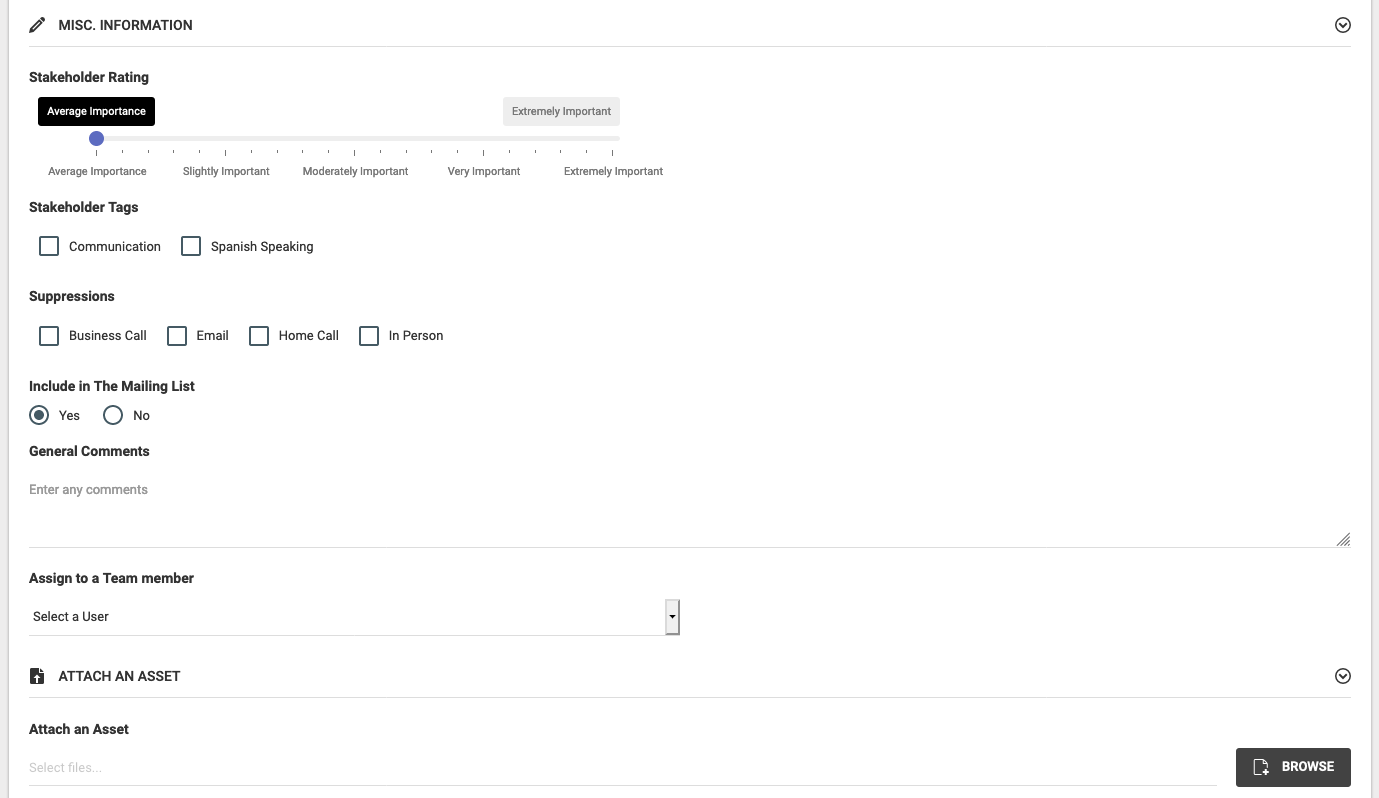
- Stakeholder Rating
- Select a rating for this stakeholder, defaults to "Average Importance"
- Stakeholder Tags
- Select any tags you want associated with this stakeholder. Tags can added via the admin/manager tools. You can search by stakeholder tags and you can select as many as needed for any one stakeholder.
- Suppressions
- Select any suppressions that may apply for this stakeholder
- Include in the Mailing List
- Select weather or not you want this stakeholder on the mailing list, the default is "Yes"
- General Comments
- Enter any comments about this stakeholder
- Assign to a Team Member
- Select a team member to assign this stakeholder too. If a stakeholder is assigned to a team member, that team member will be alerted when an inquiry or contact is input into SMS and that team member sees this stakeholder under "Stakeholders Assigned to Me" on their personal dashboard
- Attach an Asset
- Select an asset to attach directly to this stakeholder.